Documentation
Getting Started
Follow this quickstart to get started using the CrowdVision Developer API using your account's subscription keys. After you complete the quickstart, you'll know where to locate your subscription keys and how to use our interactive API Reference documentation system for testing. Because the API Reference documentation is a live interface when signed in, Step 2 below is for illustrative purposes only in case you prefer using your own REST tools like Postman for testing. More advanced authorization scenarios for client-side use cases will be described in a future article.

Step 1
Confirm Access to Your Account
Before you start the quickstart, please confirm you are able to sign in to your account using the Sign In link in the top right of your screen. If you are on a mobile device, you may need to open the hamburger menu to find the link.
Step 2
Copy Your Primary Subscription Key
Before you start the quickstart, please confirm you are able to sign in to your account using the Sign In link in the top right of your screen. If you are on a mobile device, you may need to open the hamburger menu to find the link.
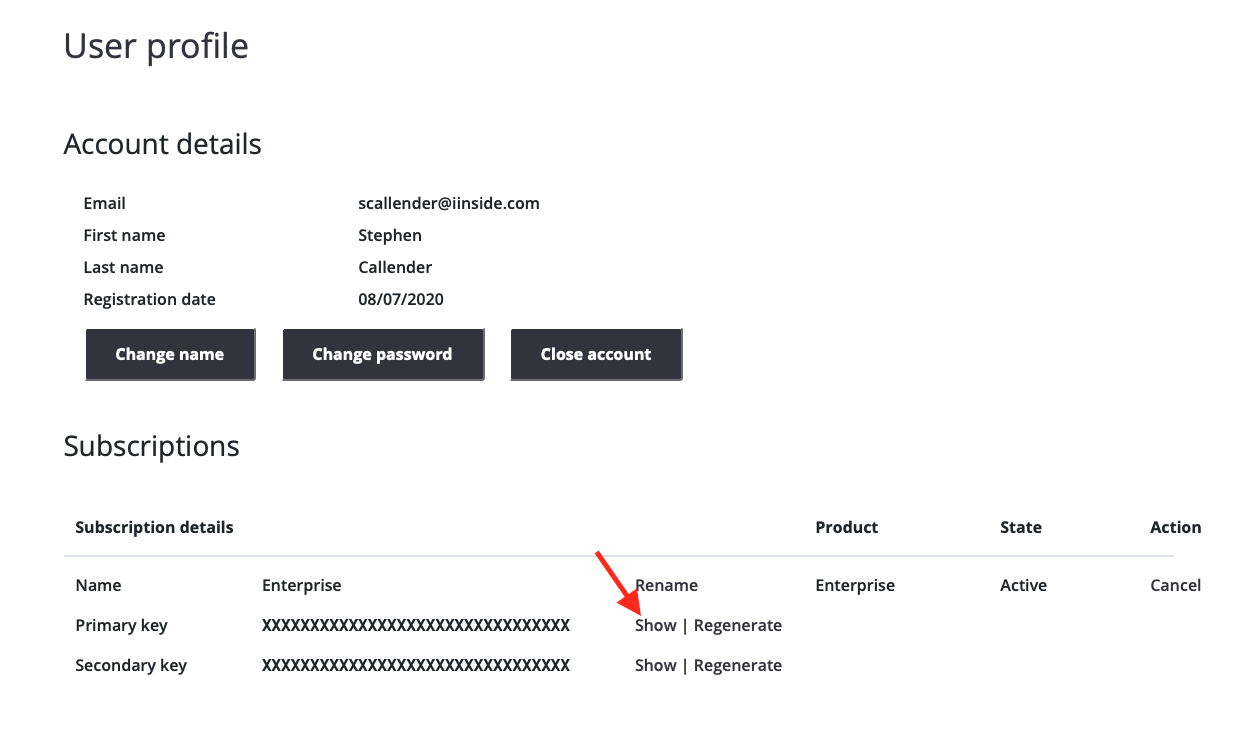
The initial view shows your keys hidden. Click Show to make the primary key visible:
Note: Subscription keys are confidential and provide complete access to all of the APIs for the subscription they are assigned to. It should not be shared or deployed in client-side browser code or mobile apps. JWT-based authorization for those use cases will be described in a future article.
Copy your key
Step 3
Test the Get All Airports Endpoint
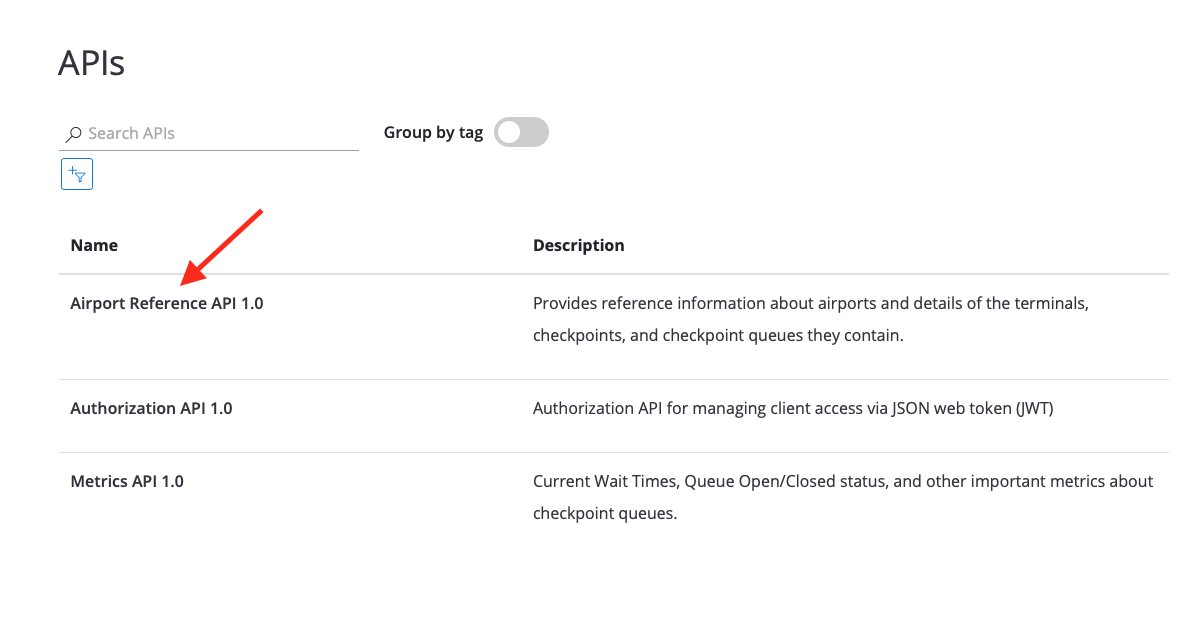
For this quickstart, we will be using the Get All Airports endpoint. This endpoint is part of the Enterprise subscription and retrieves a list of all airports authorized for the signed-in account. If your subscription is different, the steps are similar as the same authorization technique is used for all endpoints in this API.
Navigate to the Get All Airports API Reference documentation here.
Tip: If you are not signed in you will receive an error when attempting to load the API Reference page. API Reference pages are only available for signed-in users.
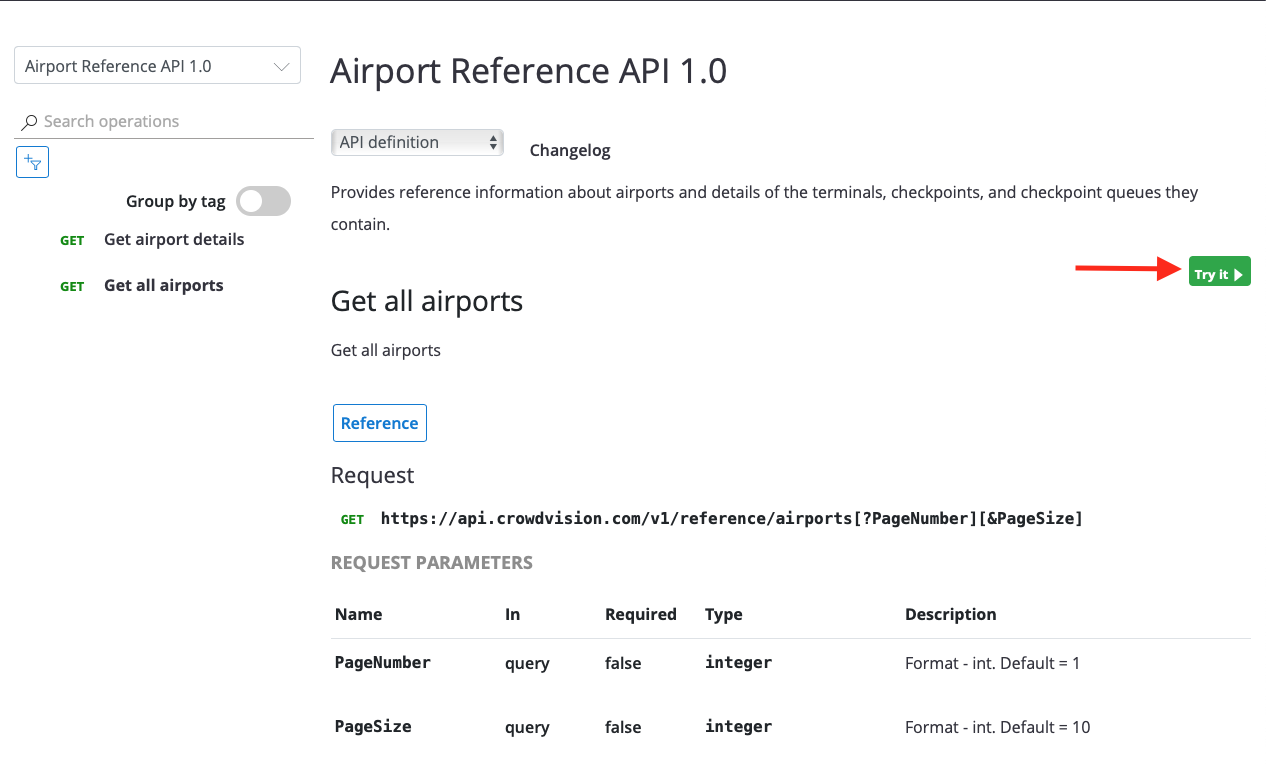
You'll see a screen that looks similar to the below image. Click the Try it button to continue:
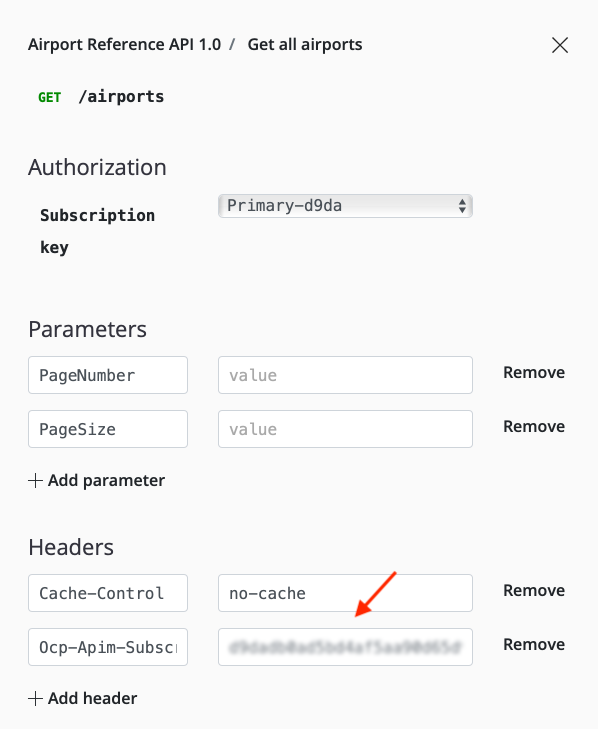
The live feature of the API Reference documentation automatically populates the subscription key into the relevant authorization header (Ocp-Apim-Subscription-Key - highlight 1). Copy the key from Step 2 into that header for experimentation or simply click Send (highlight 3) to test the endpoint. You can also test the secondary subscription key using the handy Subscription key drop-down menu (highlight 2). See image:
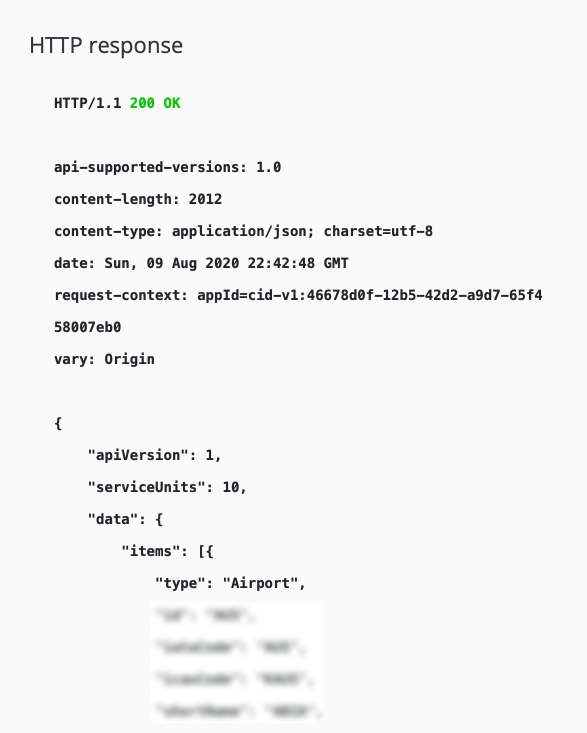
You should get a response below the Send button that looks similar to the following: